365FarmNet
Back up Data
Step-by-step guide: Back up data from 365FarmNet
Ahead of the upcoming discontinuation of 365FarmNet, you have the opportunity to save your existing data. The following steps will show you how to export relevant information and archive it for your records. Screenshots will guide you through the process and make it easy to follow.
Please make sure to back up your data in good time before the discontinuation of 365FarmNet on 30 November 2026. If you have any questions regarding data backup or the next steps, get in touch – we will be happy to assist you.


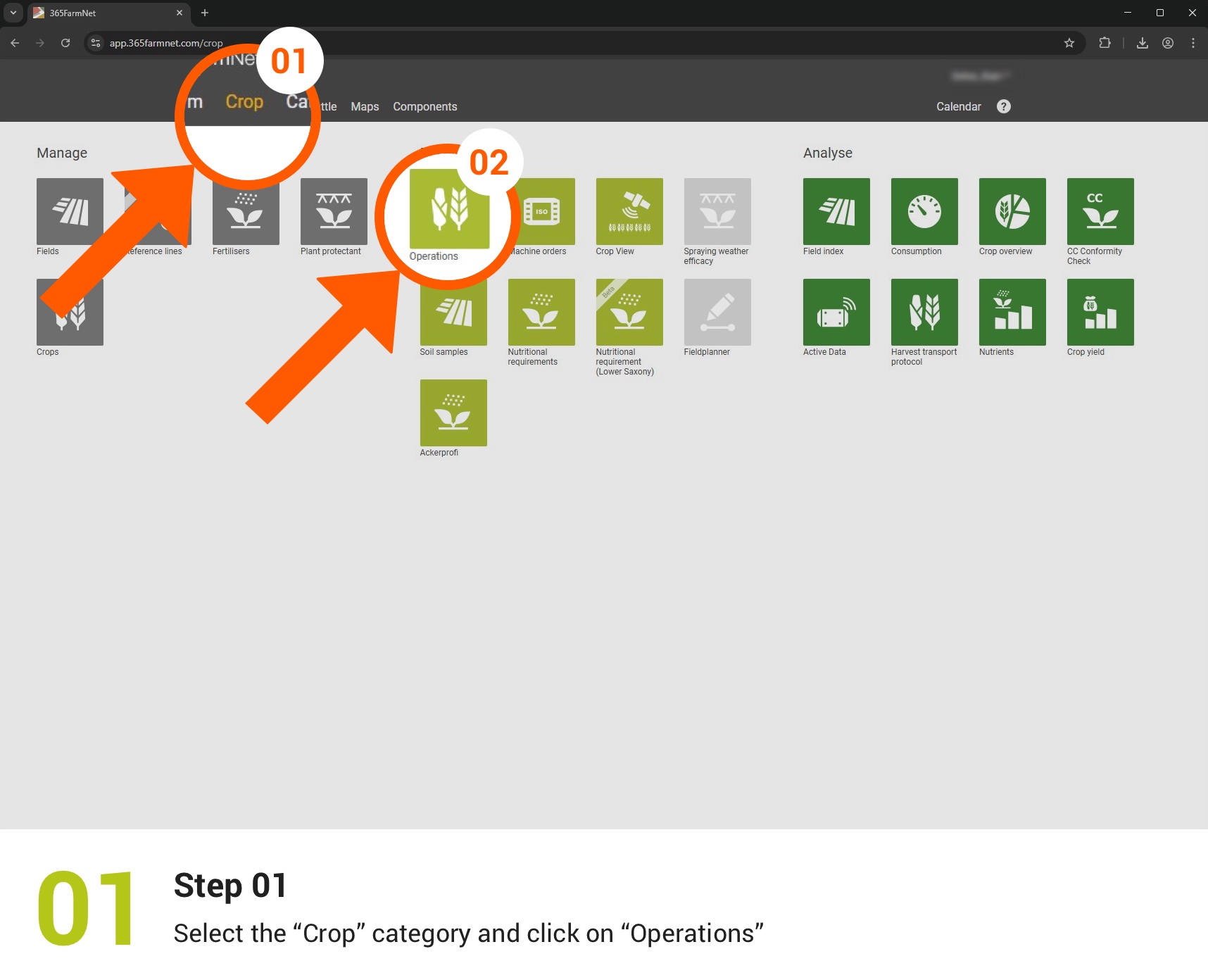
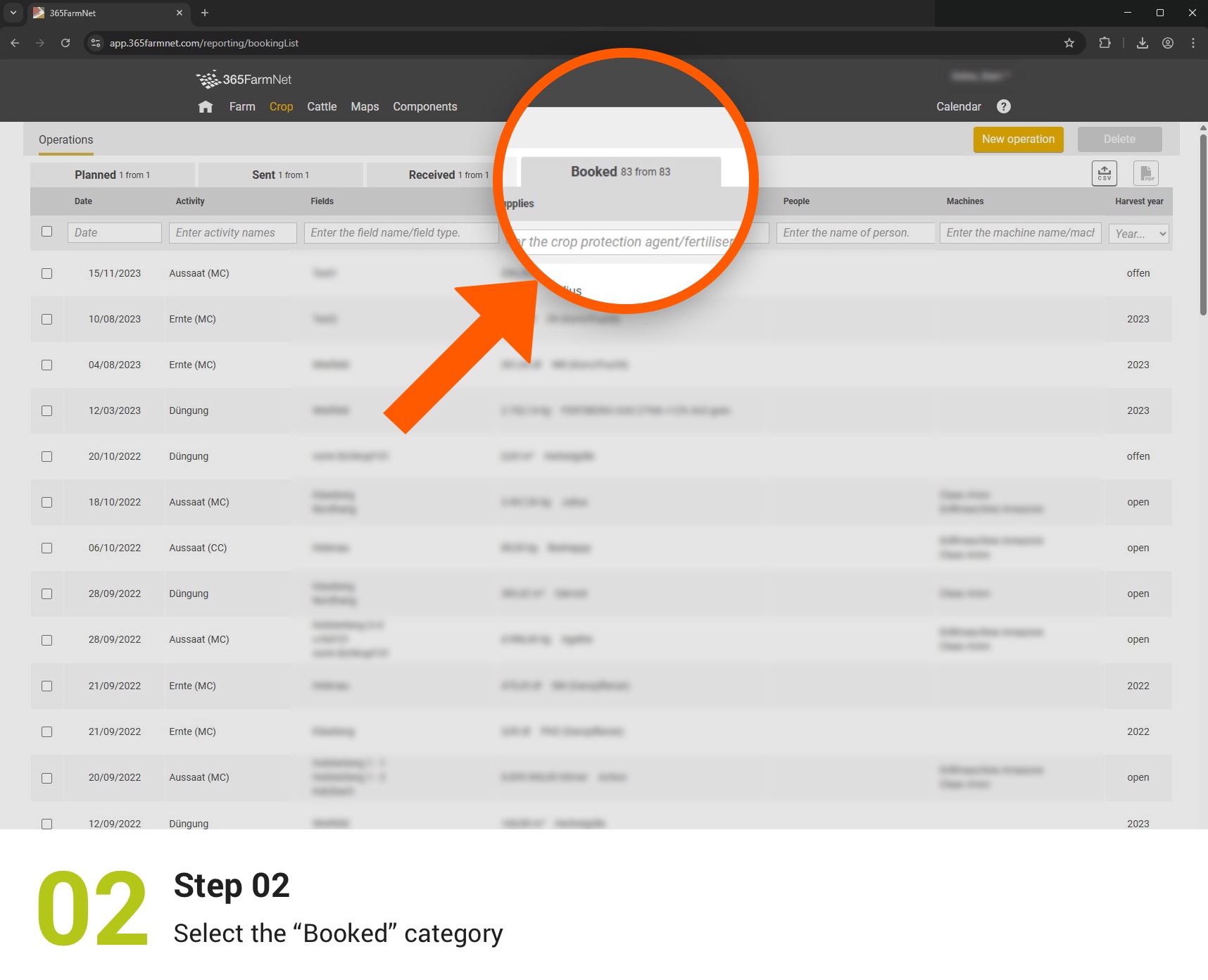
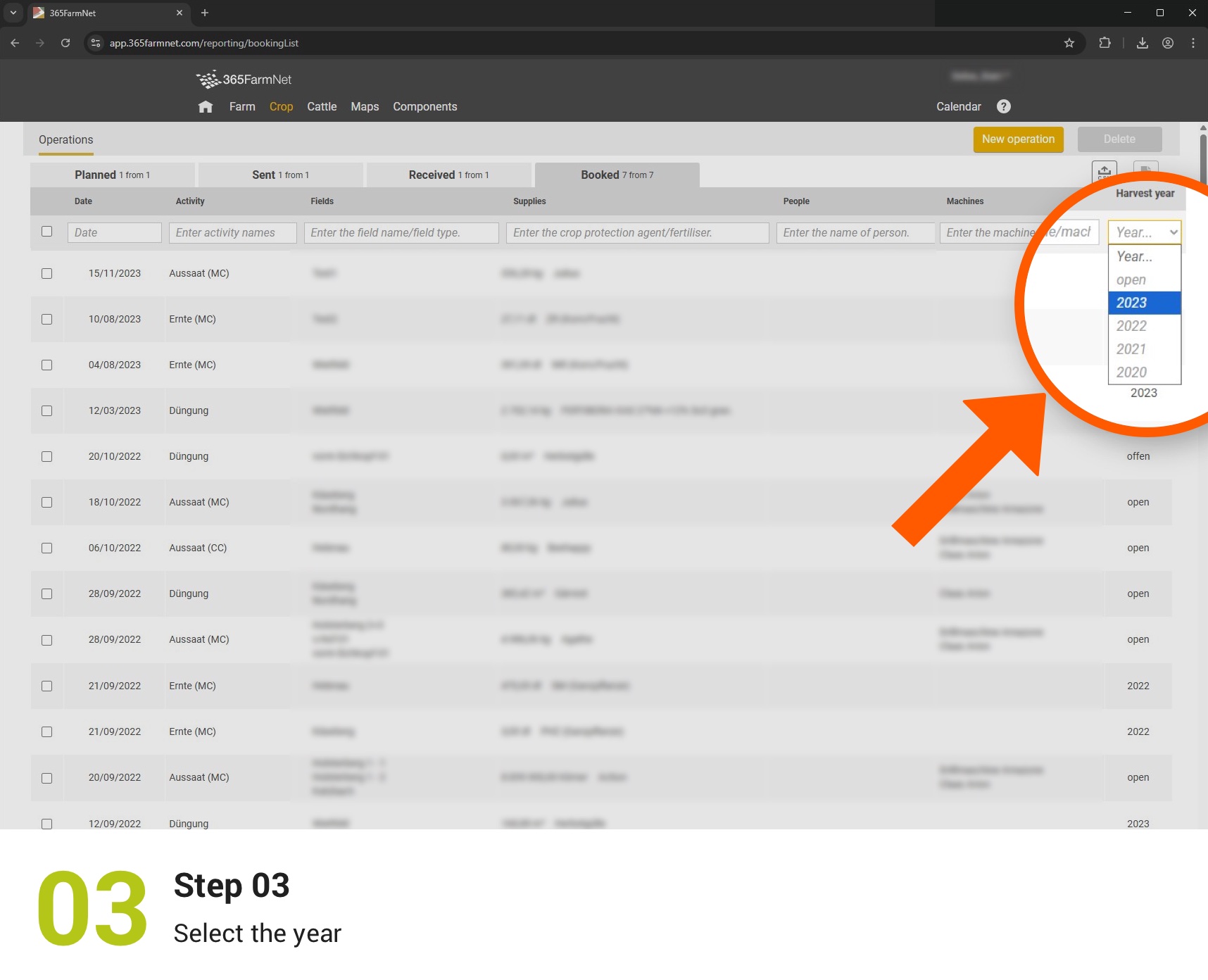
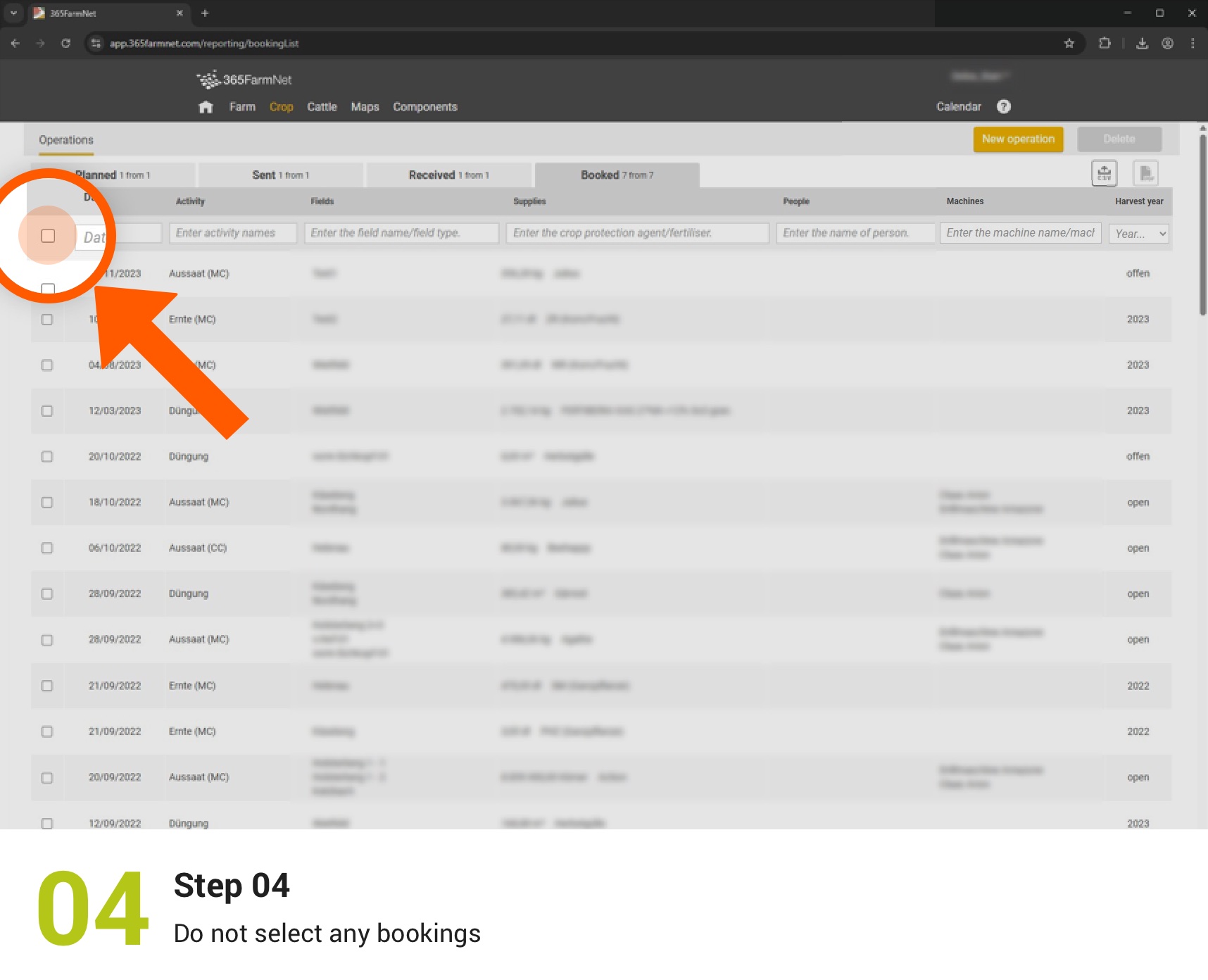
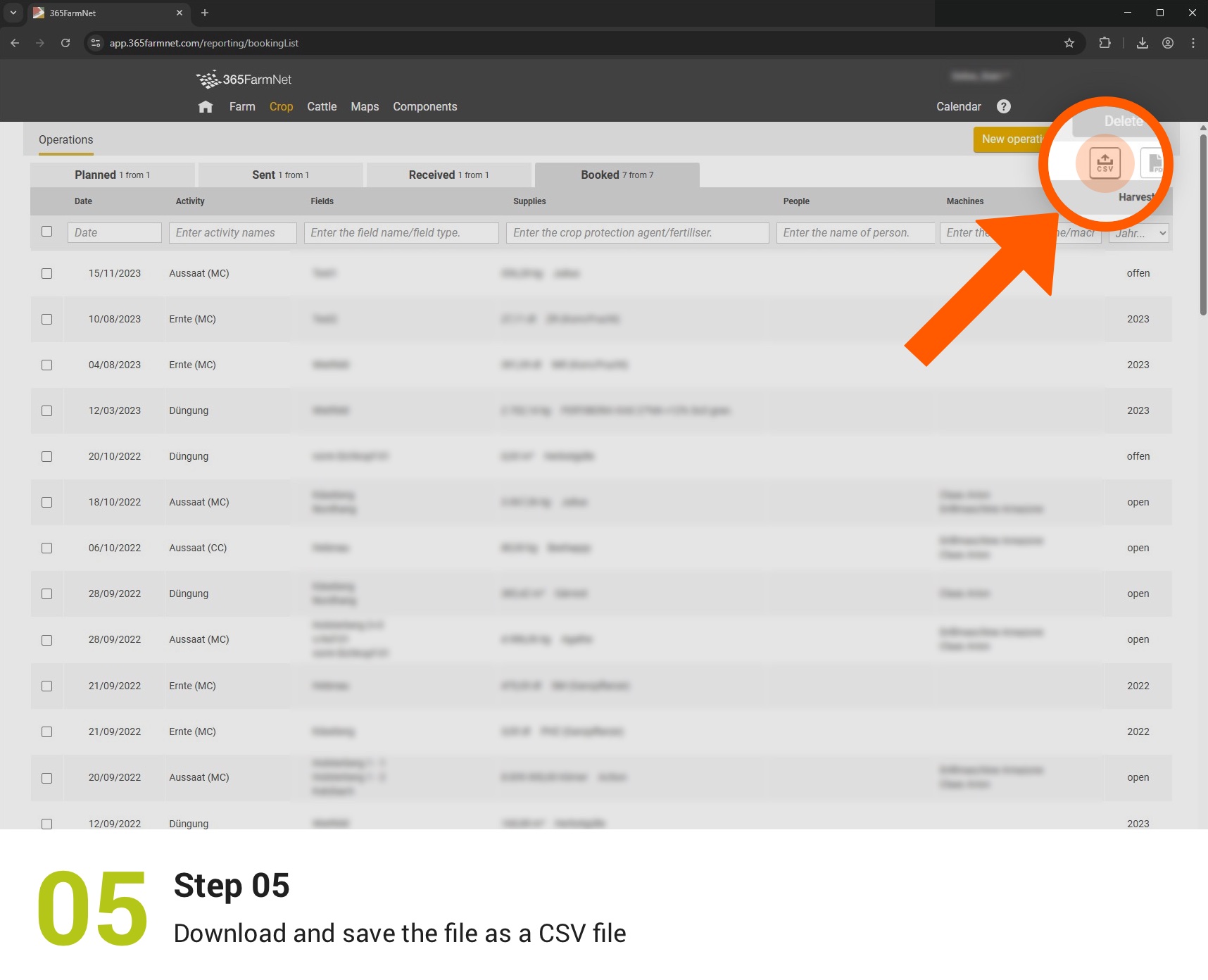
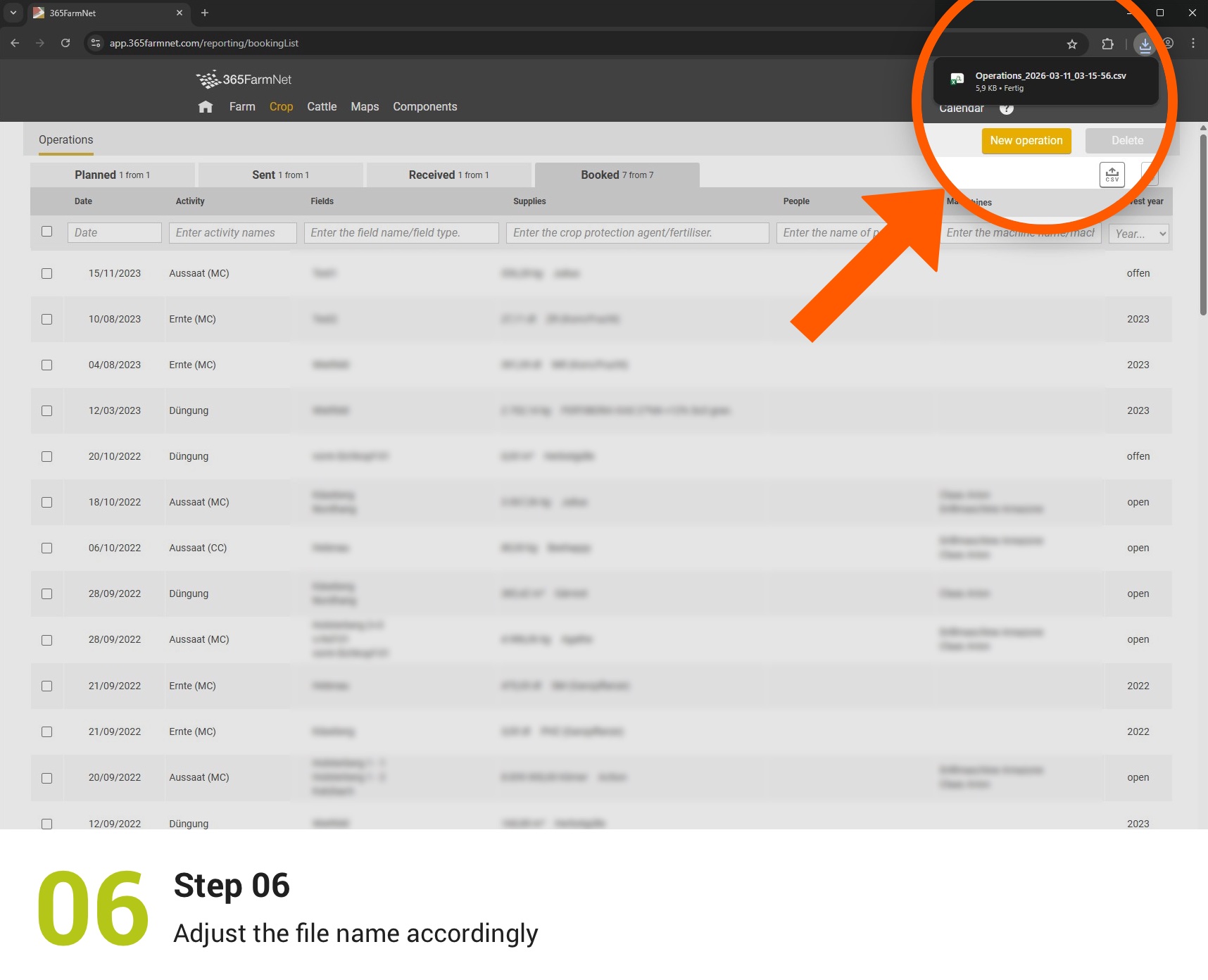
Export bookings
In this step, you back up your recorded activities in crop production as a CSV file.
Archive field records
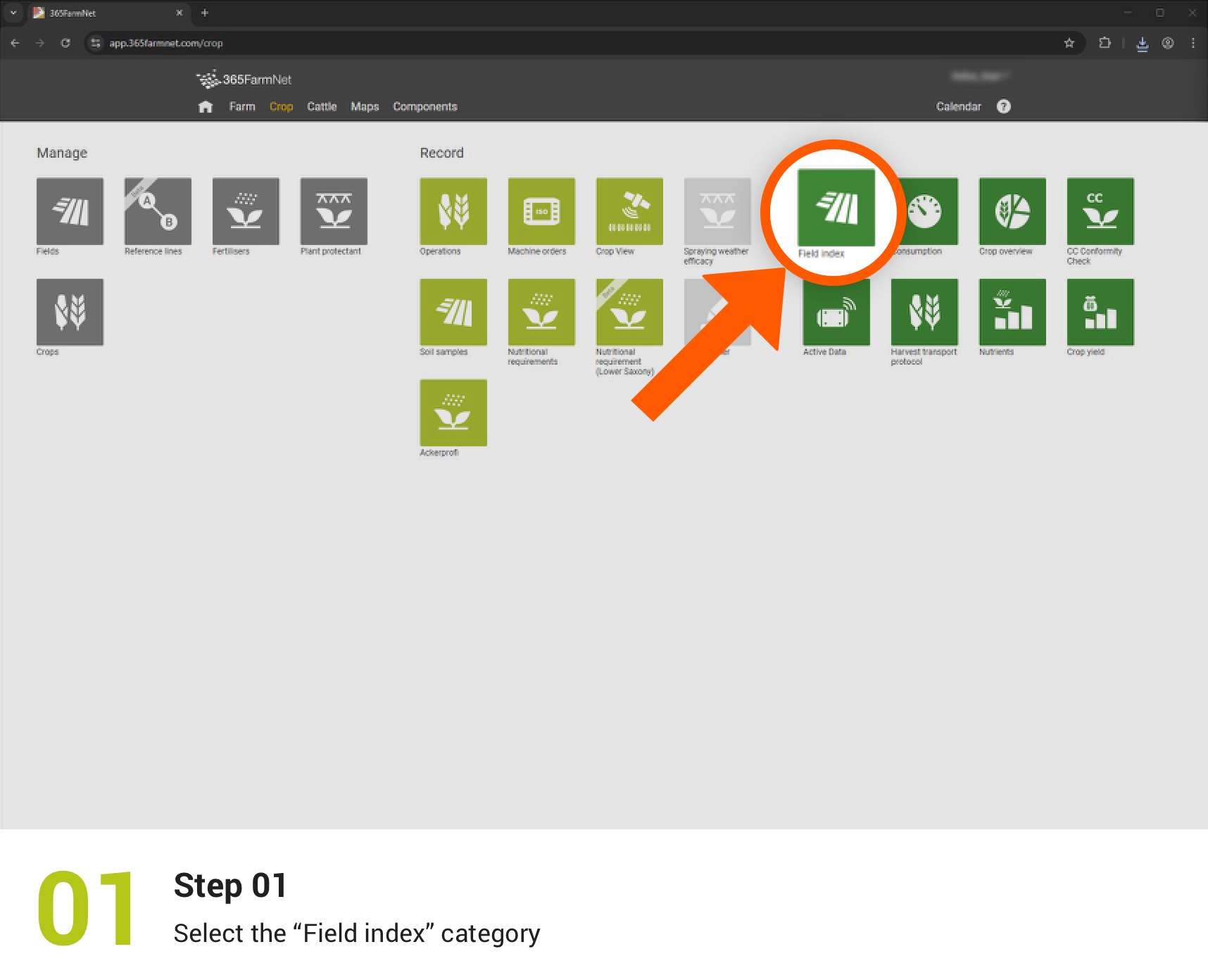
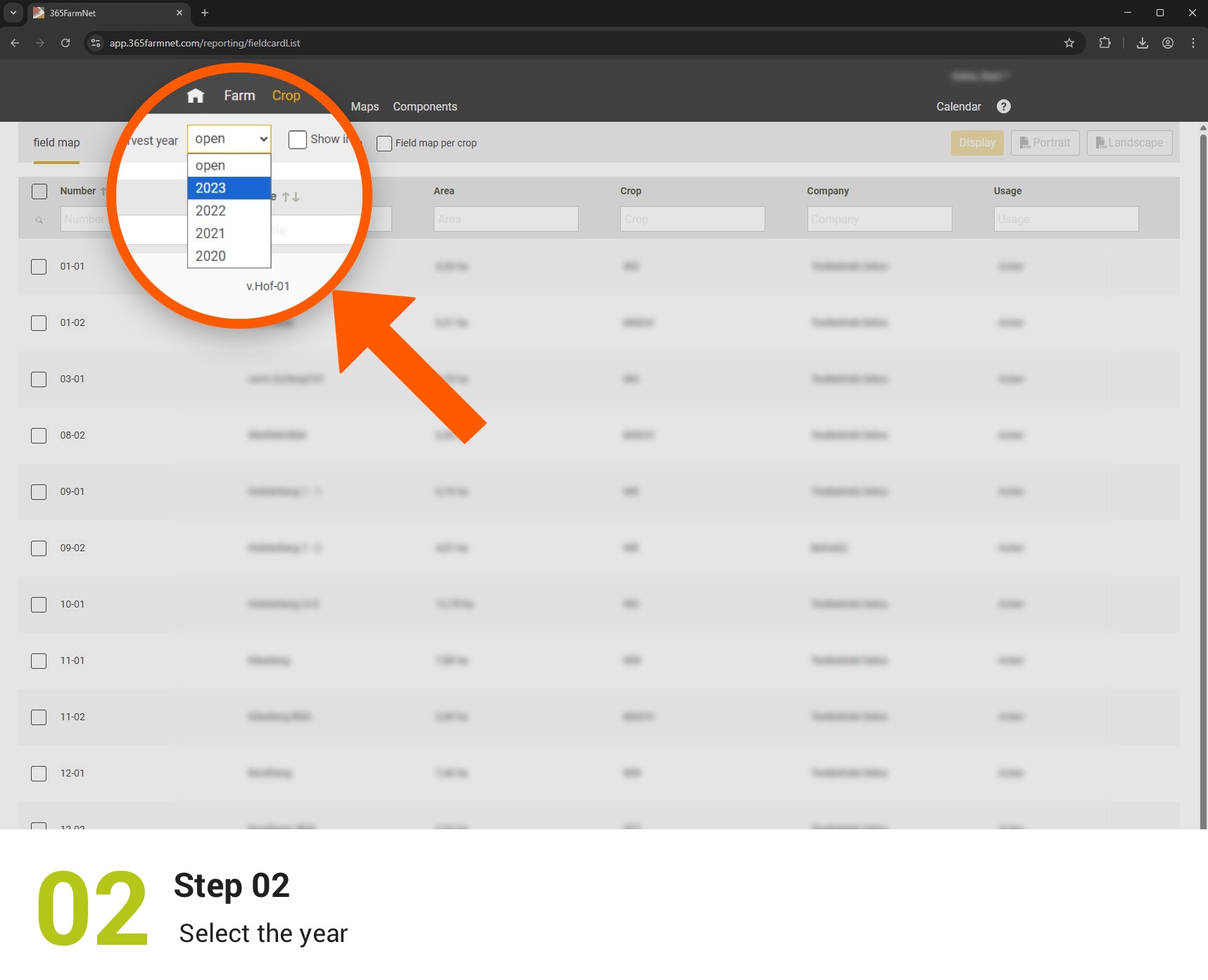
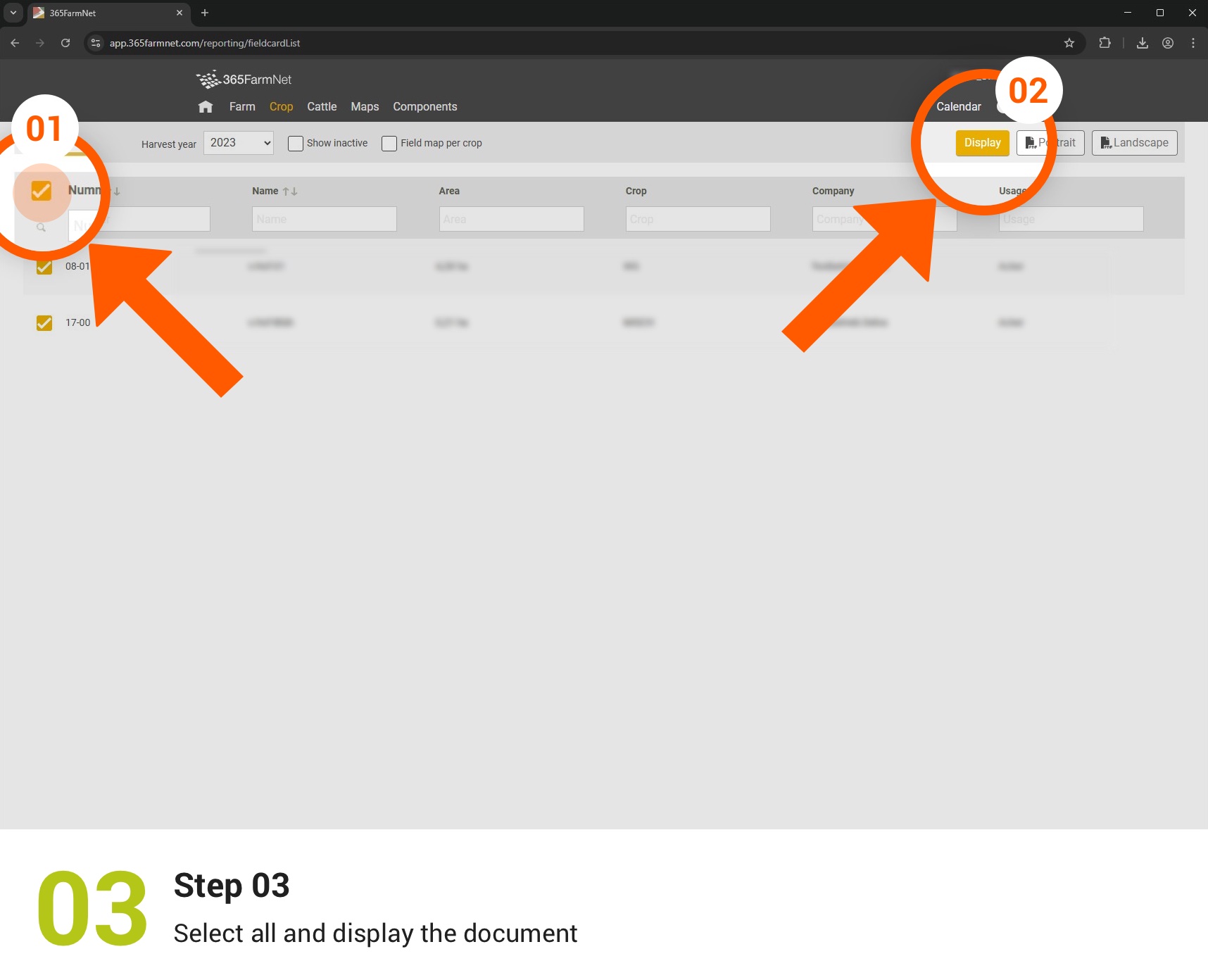
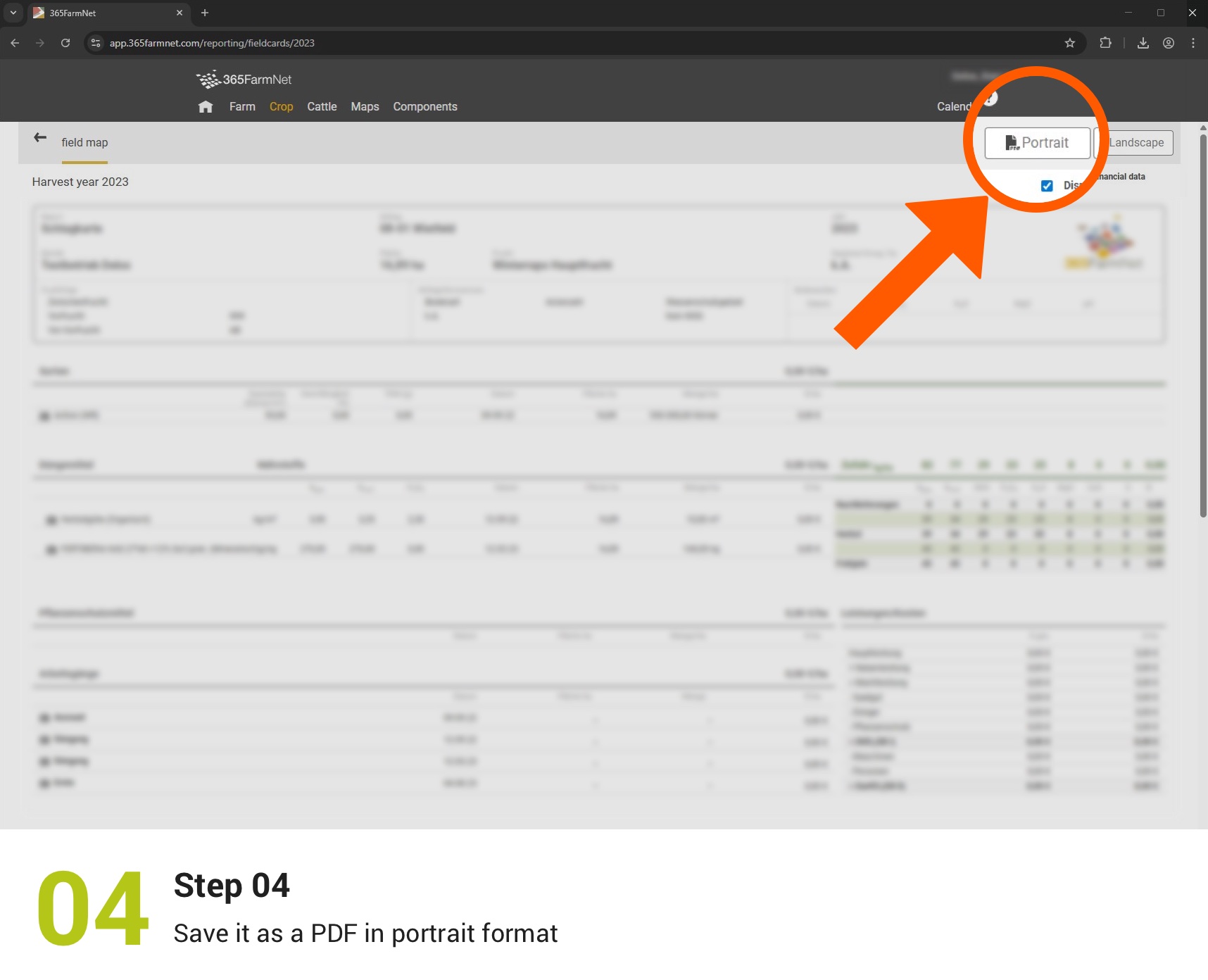
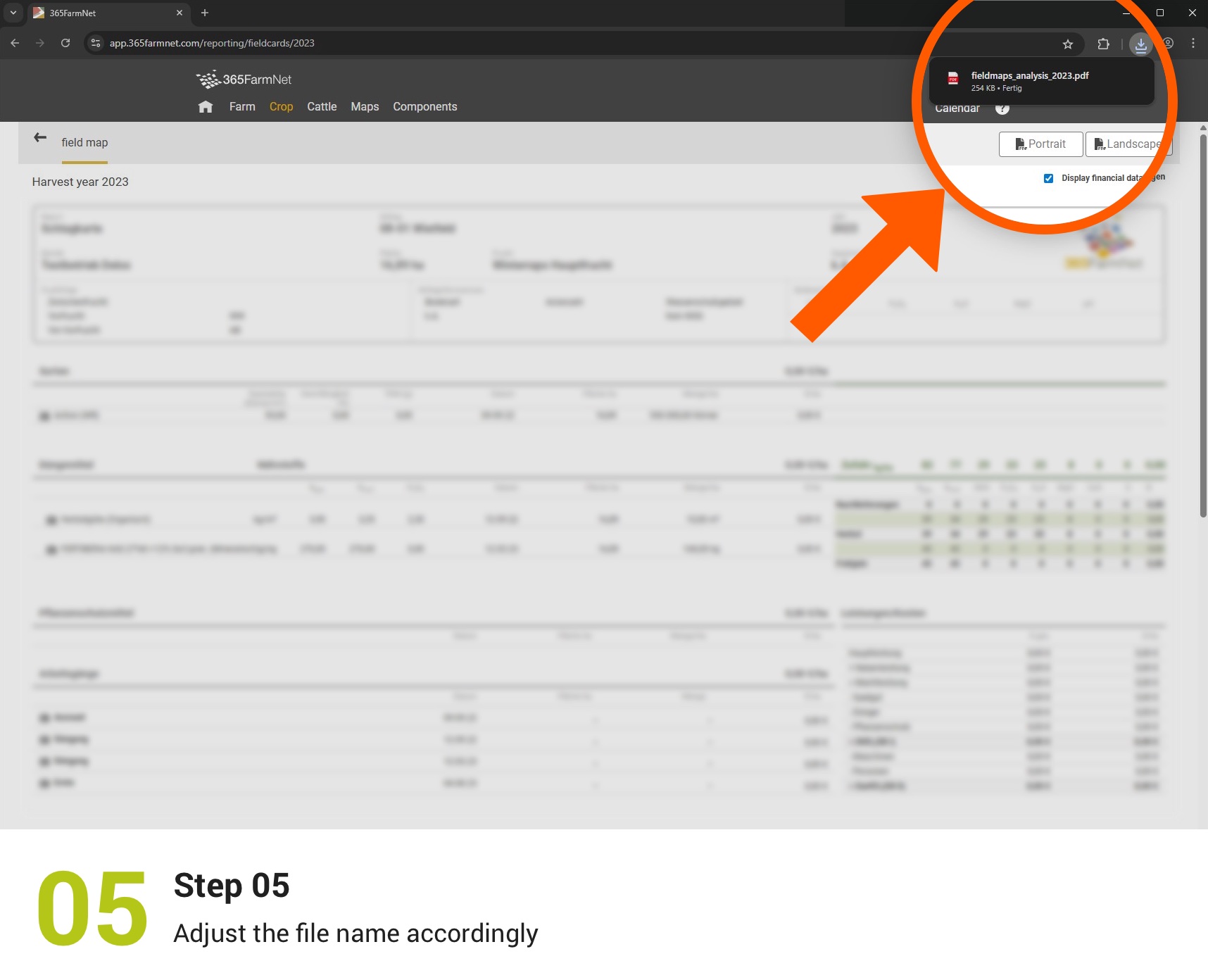
Here, you can export the history of your field records by year as a PDF.
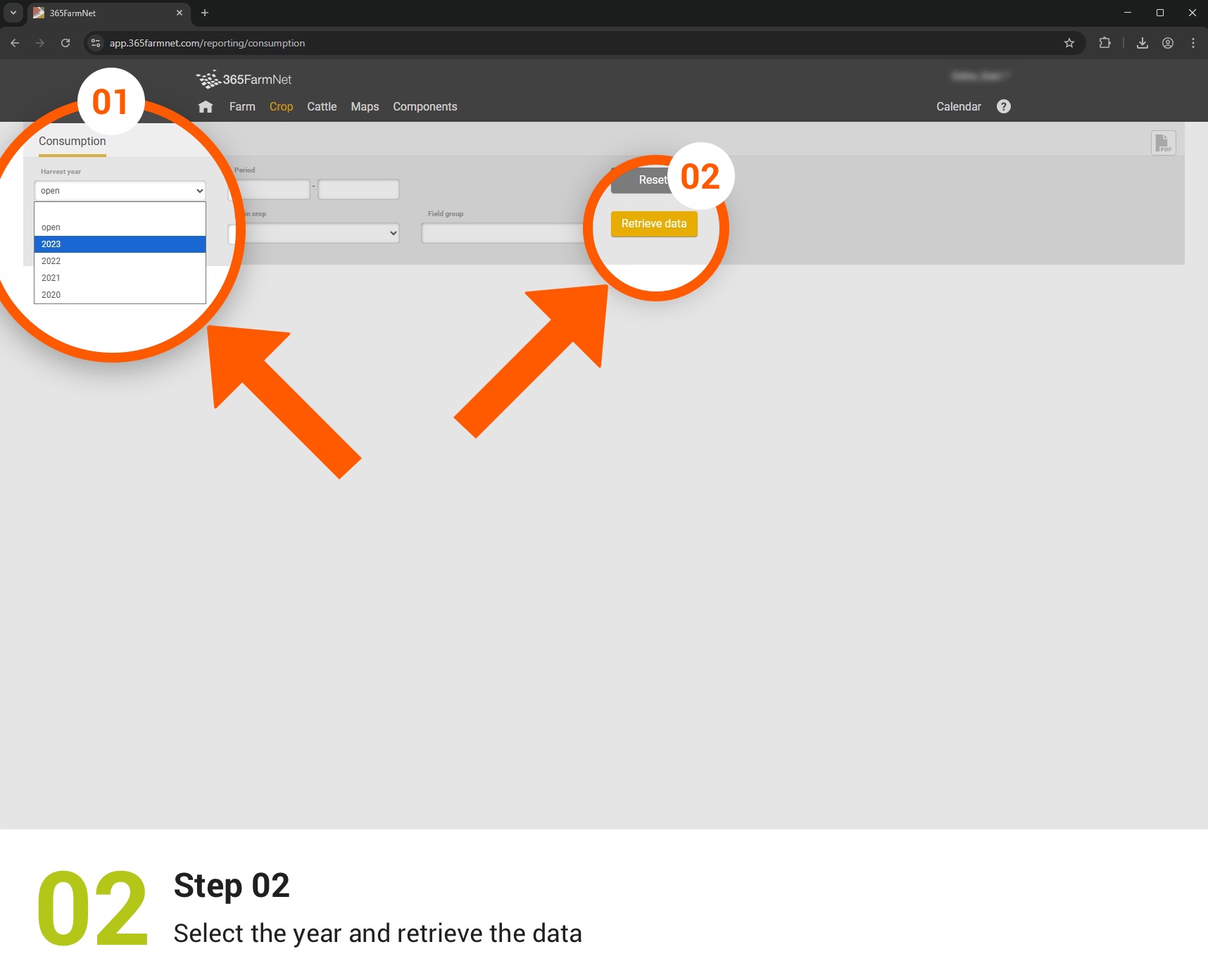
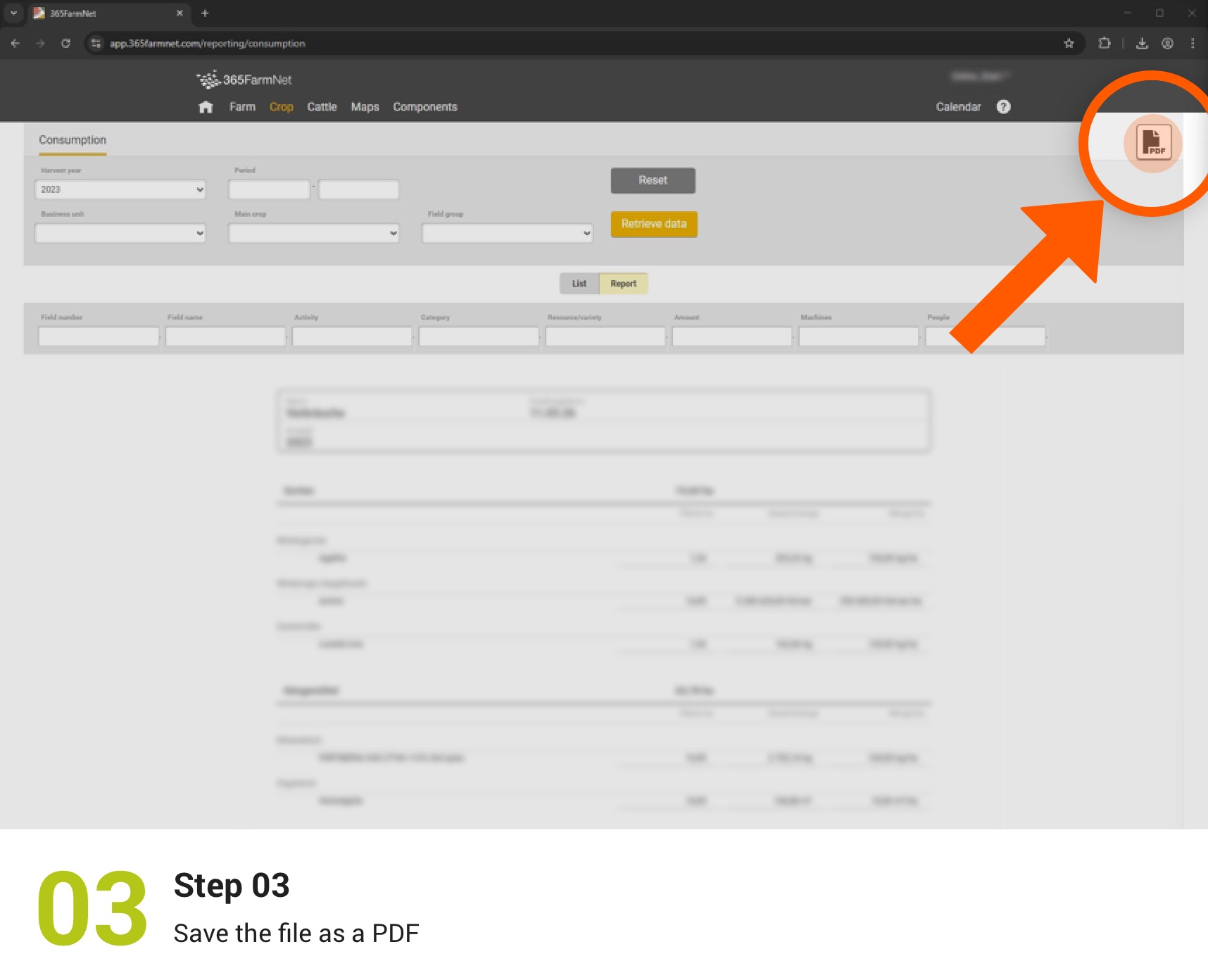
Back up consumption data
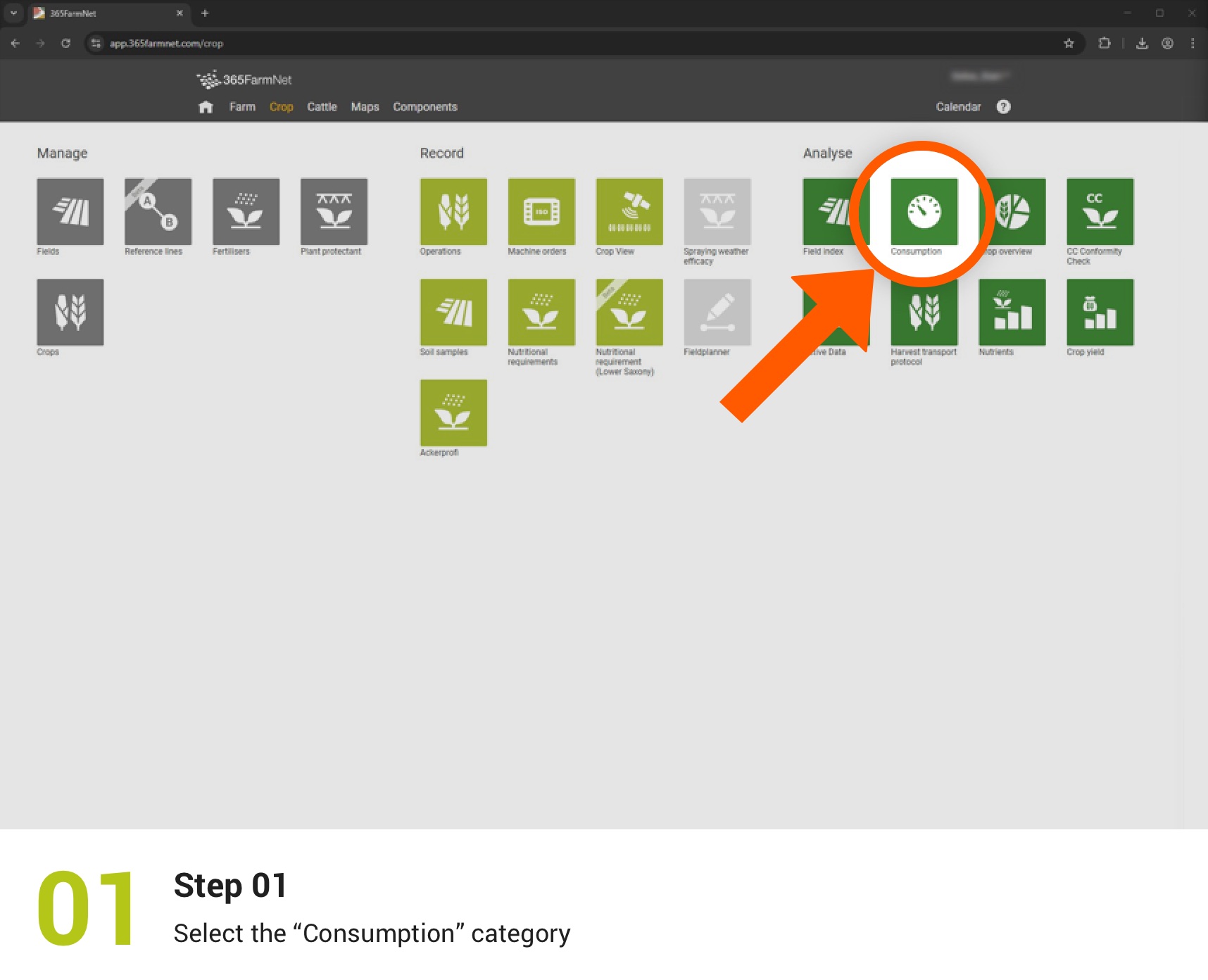
This step shows you how to save your recorded consumption data as a PDF.

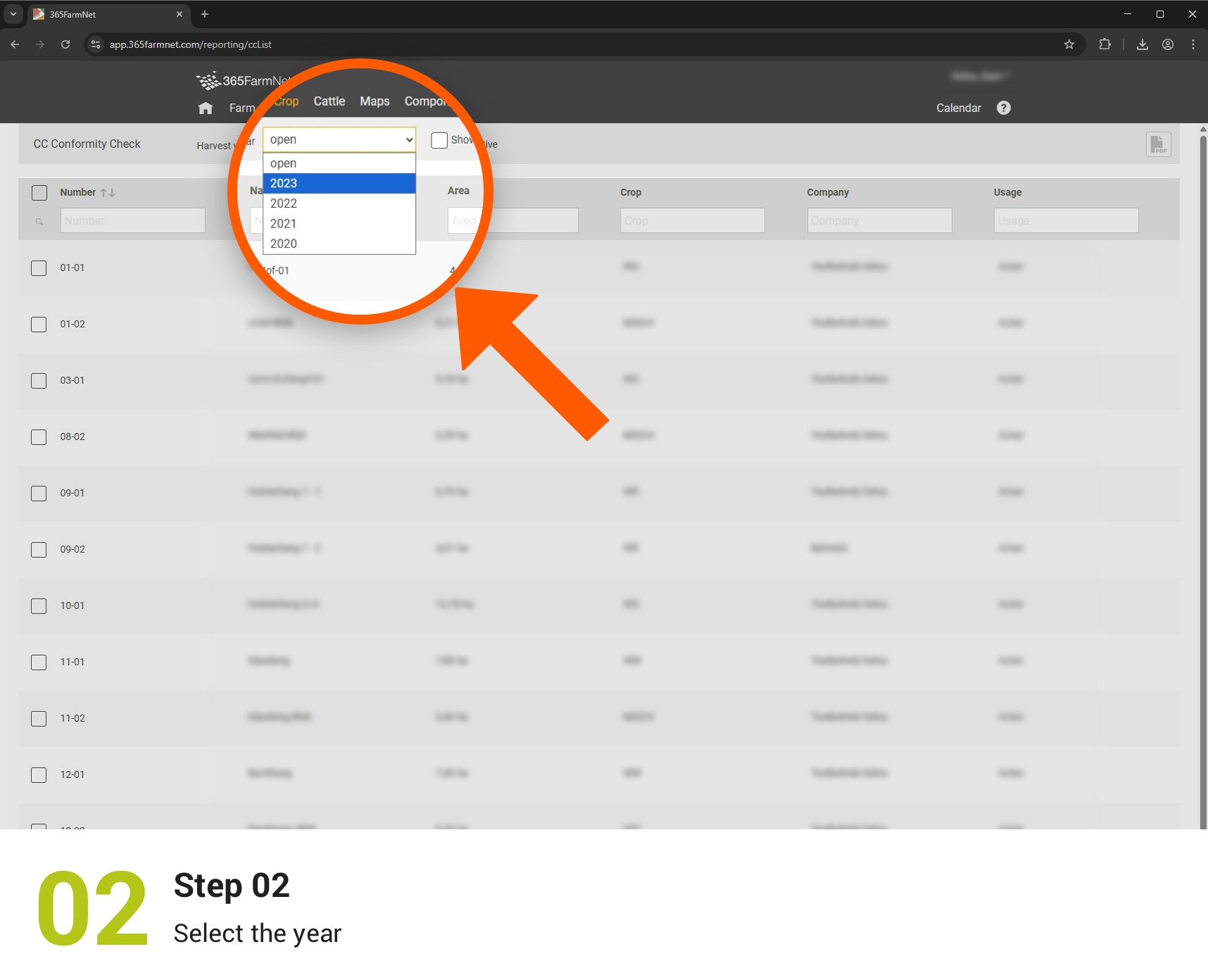
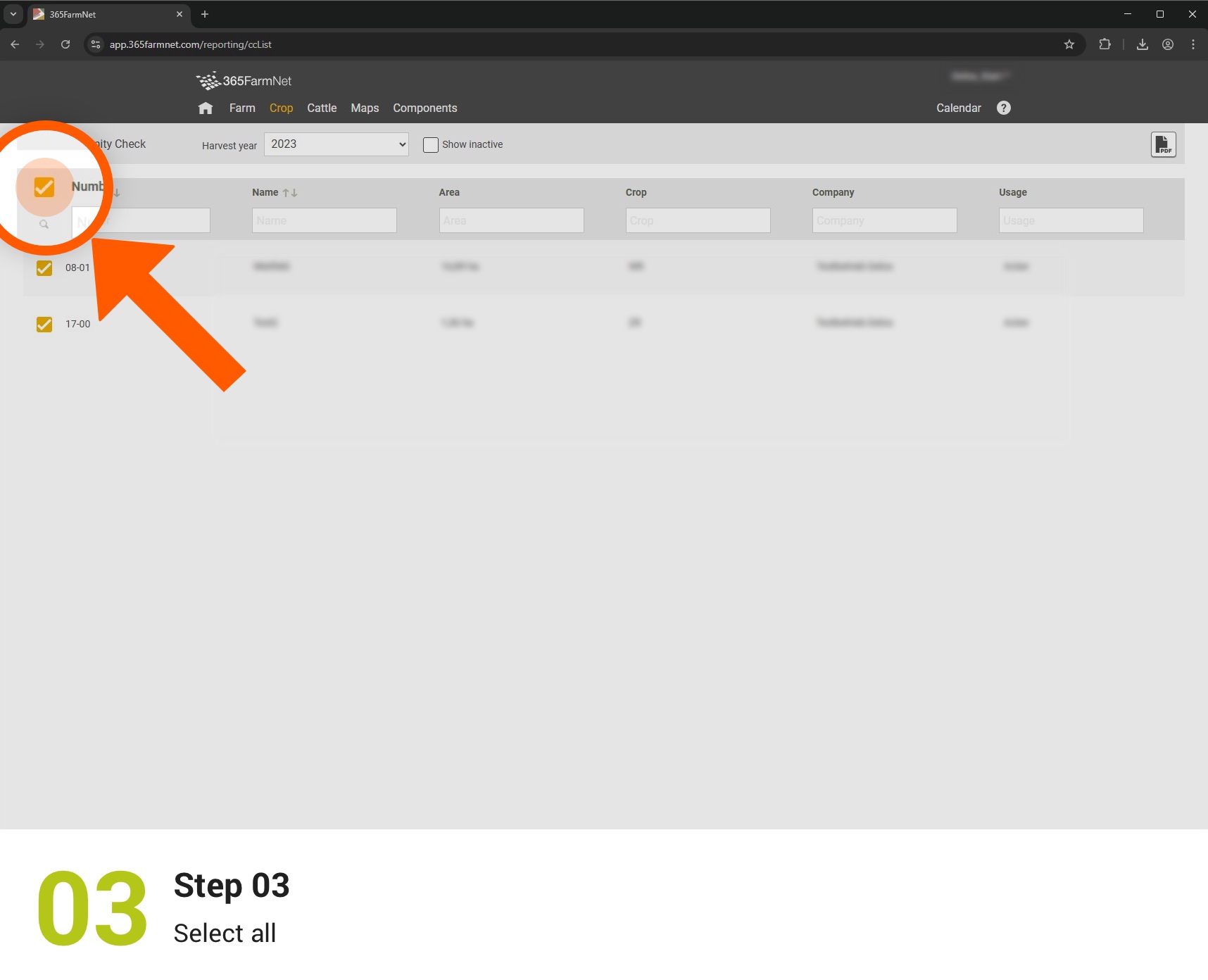
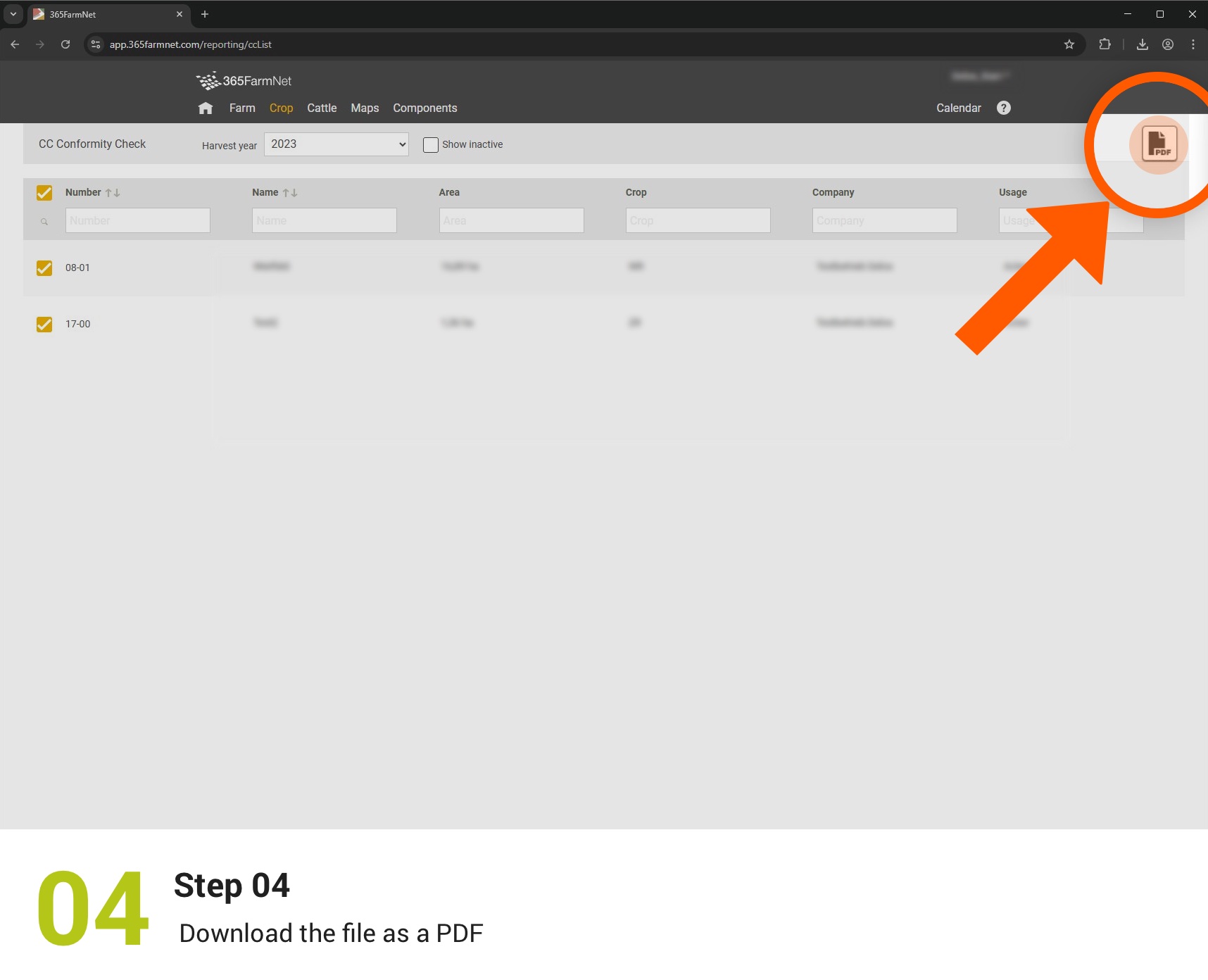
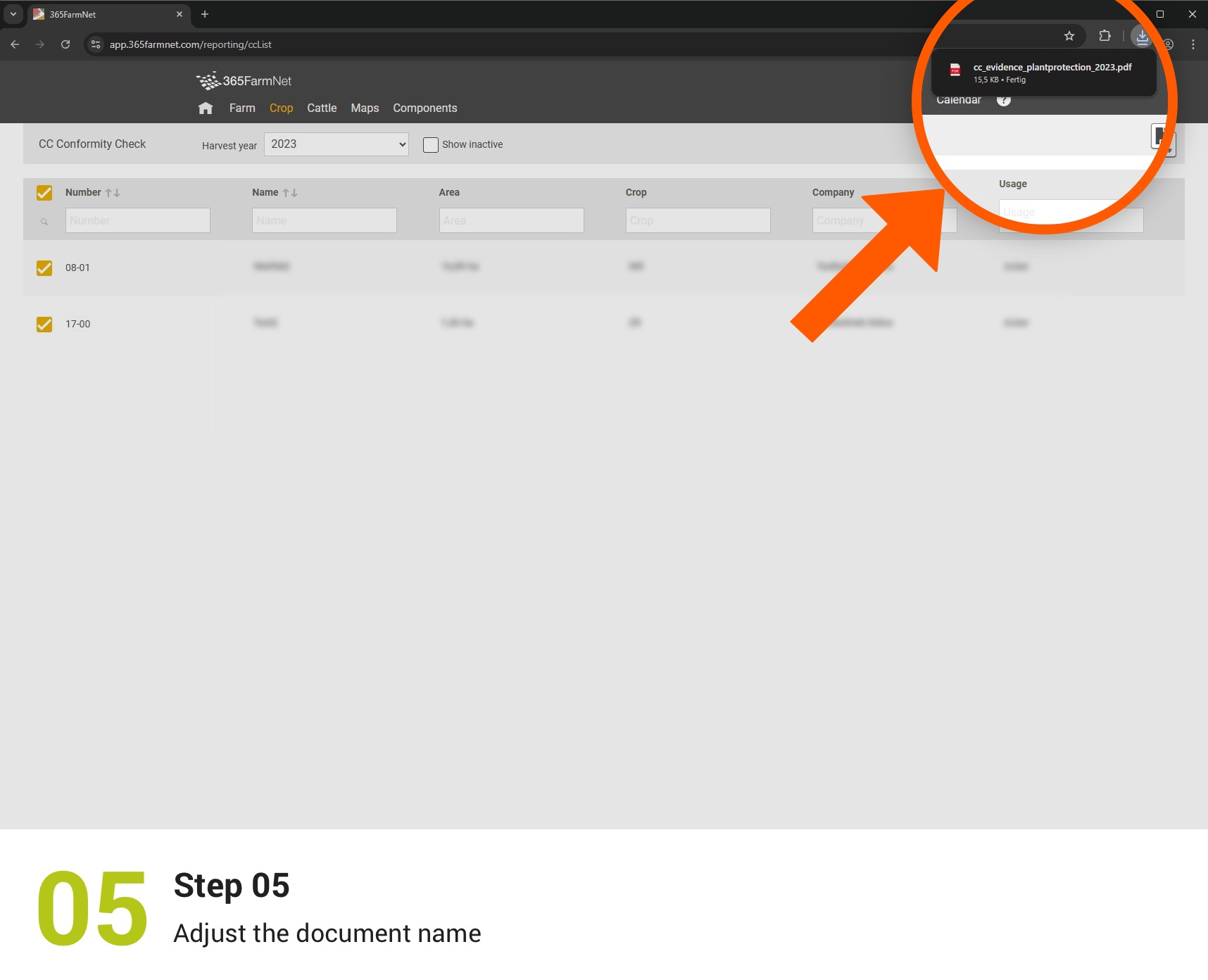
Export CC certificates (plant protection)
Finally, export your CC certificates in the plant protection section for documentation purposes.